How to Gate a PDF on Webflow and Capture Email Leads
Gating a PDF on Webflow effectively turns valuable content into a lead-generation opportunity. Instead of allowing every visitor to download an ebook, whitepaper, checklist, or case study without providing any information, you can ask visitors to submit their email address before accessing the resource.
However, collecting an email address is only one part of the process. You also need a reliable delivery method, a smooth user experience, and a way to measure how well your PDF converts visitors into leads.
In this guide, you'll learn how to gate a PDF on Webflow, explore five implementation methods, discover how to prevent direct-link access, and learn how to optimize your PDF lead-generation strategy using GatedPDF.
Table of Contents
- What Is PDF Gating?
- Why Gate PDFs on Webflow?
- 5 Ways to Gate a PDF on Webflow
- How to Gate a PDF Using GatedPDF
- How to Prevent Unauthorized PDF Access
- Best Practices for Capturing More Email Leads
- How to Measure PDF Lead-Generation Performance
- Common Mistakes to Avoid
- Frequently Asked Questions
- Conclusion
1. What Is PDF Gating?
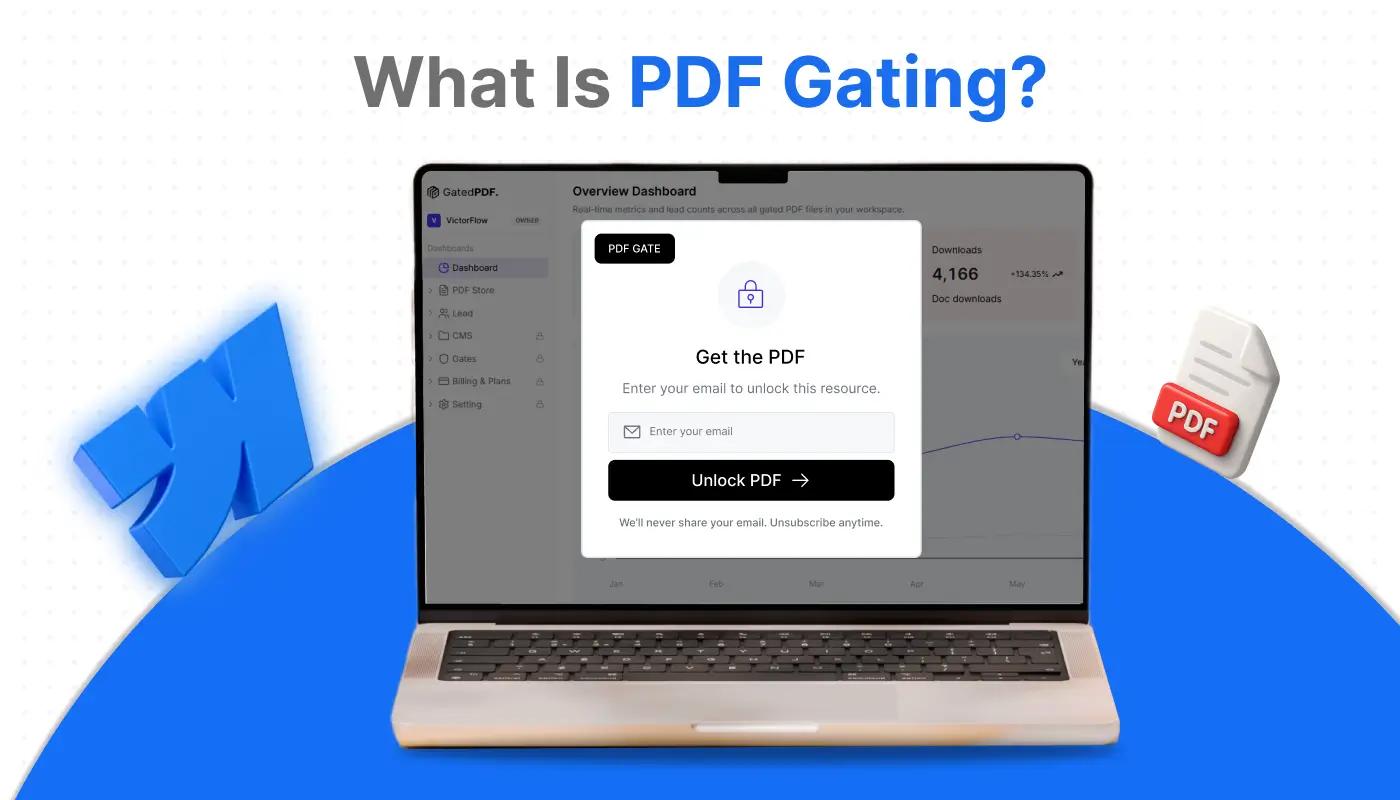
PDF gating is a content marketing technique that requires visitors to provide information, such as an email address, before accessing a PDF document.
Businesses commonly use gated PDFs to distribute:
- Ebooks and educational guides
- Whitepapers and industry reports
- Case studies and research documents
- Checklists and templates
- Product brochures and resource guides
- Marketing playbooks and downloadable tools
For example, a SaaS company could publish a Webflow landing page offering a free ebook. Visitors enter their email addresses, submit the form, and receive access to the ebook.
This exchange helps businesses generate leads while providing visitors with useful information.
However, email capture and PDF protection are two different things. A form can collect an email address without protecting the original PDF file. If the document remains publicly accessible through a direct URL, other people may access it without completing the form.
A successful PDF-gating setup should therefore consider lead capture, document delivery, access control, and performance tracking.
2. Why Gate PDFs on Webflow?
Webflow allows businesses to create landing pages and marketing websites without building every component from scratch. Adding PDF gating to a Webflow website can help connect content marketing with lead generation.
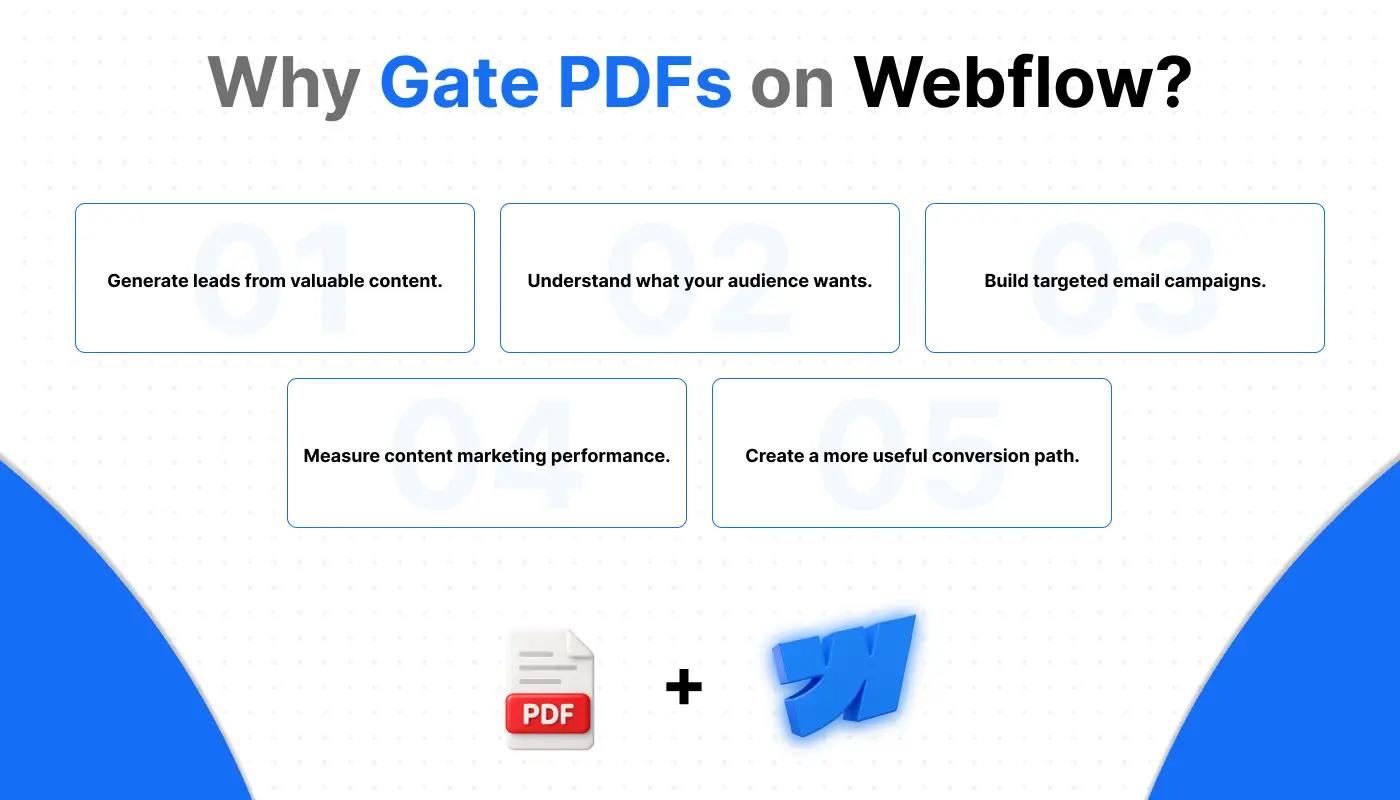
1. Generate leads from valuable content.
A useful PDF can attract visitors who are actively researching a problem or solution. Requiring an email address before providing the resource creates an opportunity to build a relevant contact database.
2. Understand what your audience wants
Different PDFs attract different audiences. Tracking which resources generate the most submissions can help you understand which subjects are most valuable to potential customers.
3. Build targeted email campaigns.
When you know which resource a visitor requested, you can follow up with relevant information.
For example, someone downloading a lead-generation checklist might be interested in marketing automation tips, while someone requesting a product guide may want to learn more about specific features.
4. Measure content marketing performance
PDF gating gives you an opportunity to measure the journey from landing-page visits to form submissions and successful document delivery.
Instead of evaluating content only by page views, you can also assess lead quality and the actions visitors take afterward.
5. Create a more useful conversion path
A dedicated landing page can explain the document's benefits, show a preview, and give visitors a clear next step.
Nevertheless, not every resource should be gated. Keep valuable educational content publicly accessible when it supports organic search visibility, customer education, and discovery. Use gated PDFs as an additional conversion opportunity.
3. 5 Ways to Gate a PDF on Webflow
The best implementation method depends on your requirements. Some businesses need only an email form, while others require automated delivery, CRM integration, or restricted access.
Method 1: Use Webflow's Native Form
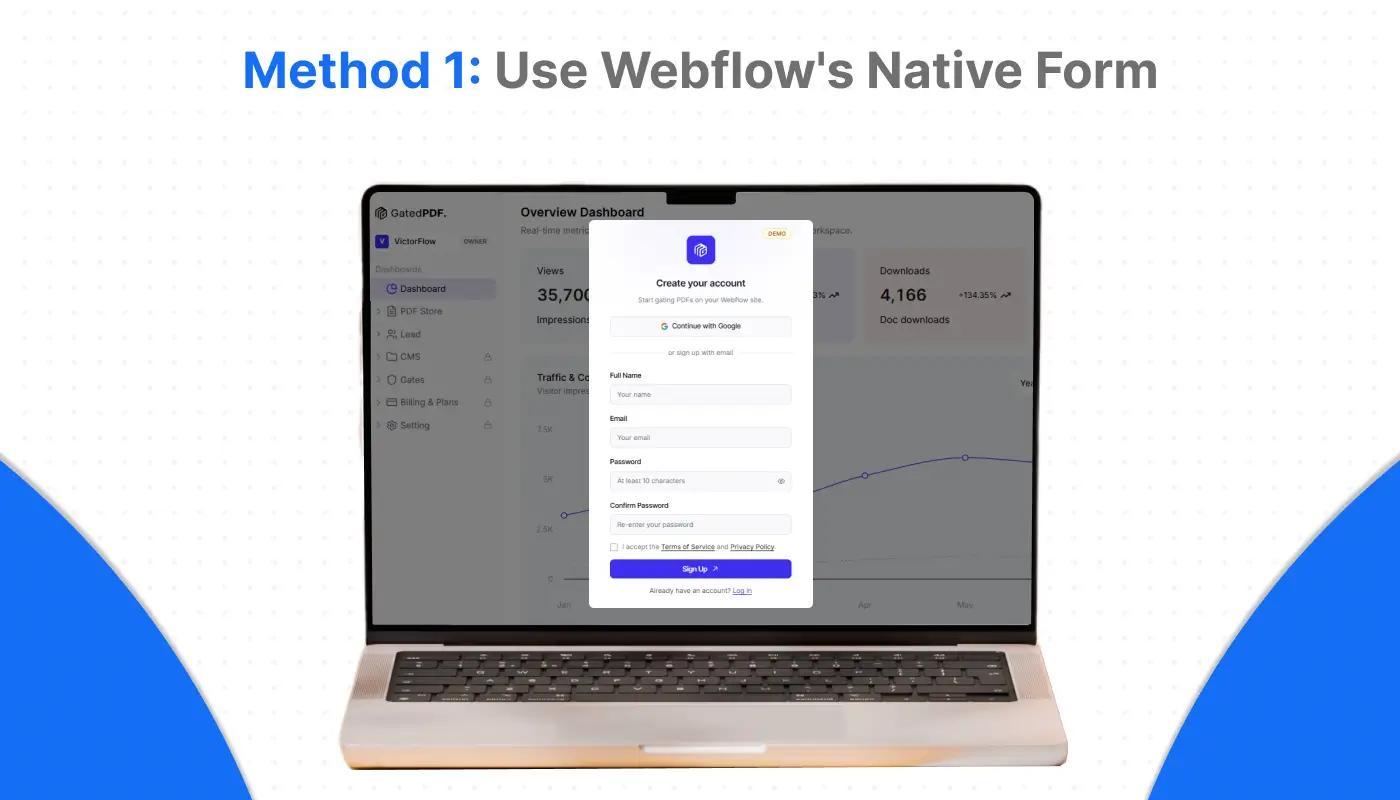
Webflow's native forms provide a straightforward starting point for capturing visitor information.
How to set it up:
- Open your Webflow project in the Designer.
- Create a landing page for your PDF resource.
- Add a Form Block to the page.
- Include an email field and a clear submit button.
- Explain the benefits of downloading the document.
- Configure the form's submission handling.
- Add a success message or redirect to a thank-you page.
- Publish the page and test the complete form-submission process.
After submission, visitors can be directed to a download page or receive an email containing the PDF link.
Advantages:
- Simple to configure.
- Uses existing Webflow page-building functionality.
- Suitable for basic email-capture campaigns.
Limitations:
- Automated PDF delivery may require additional configuration.
- Lead tracking depends on your form and analytics setup.
- A public PDF URL can be shared without submitting the form.
This method works well when your primary objective is collecting email addresses and strict file access control is not required.
Method 2: Connect Webflow to Zapier or Make
Automation platforms can connect form submissions to email services, CRMs, and other marketing tools.
A typical workflow looks like this:
- A visitor submits the Webflow form.
- The automation platform receives the submission.
- The workflow validates the required information.
- The visitor's details are added to the appropriate contact system.
- An automated email delivers the PDF link.
- The system records the requested resource where supported.
For example, you could create a workflow that sends a different download email depending on which checklist a visitor requests.
Advantages:
- Automates follow-up.
- Connects multiple marketing tools.
- Supports resource-specific workflows.
Limitations:
- Requires workflow configuration and testing.
- Failed automation runs can interrupt delivery.
- A public download link remains accessible to anyone who obtains it.
Use this approach when you need automated delivery and already rely on marketing automation tools.
Method 3: Use HubSpot Forms and CRM Automation
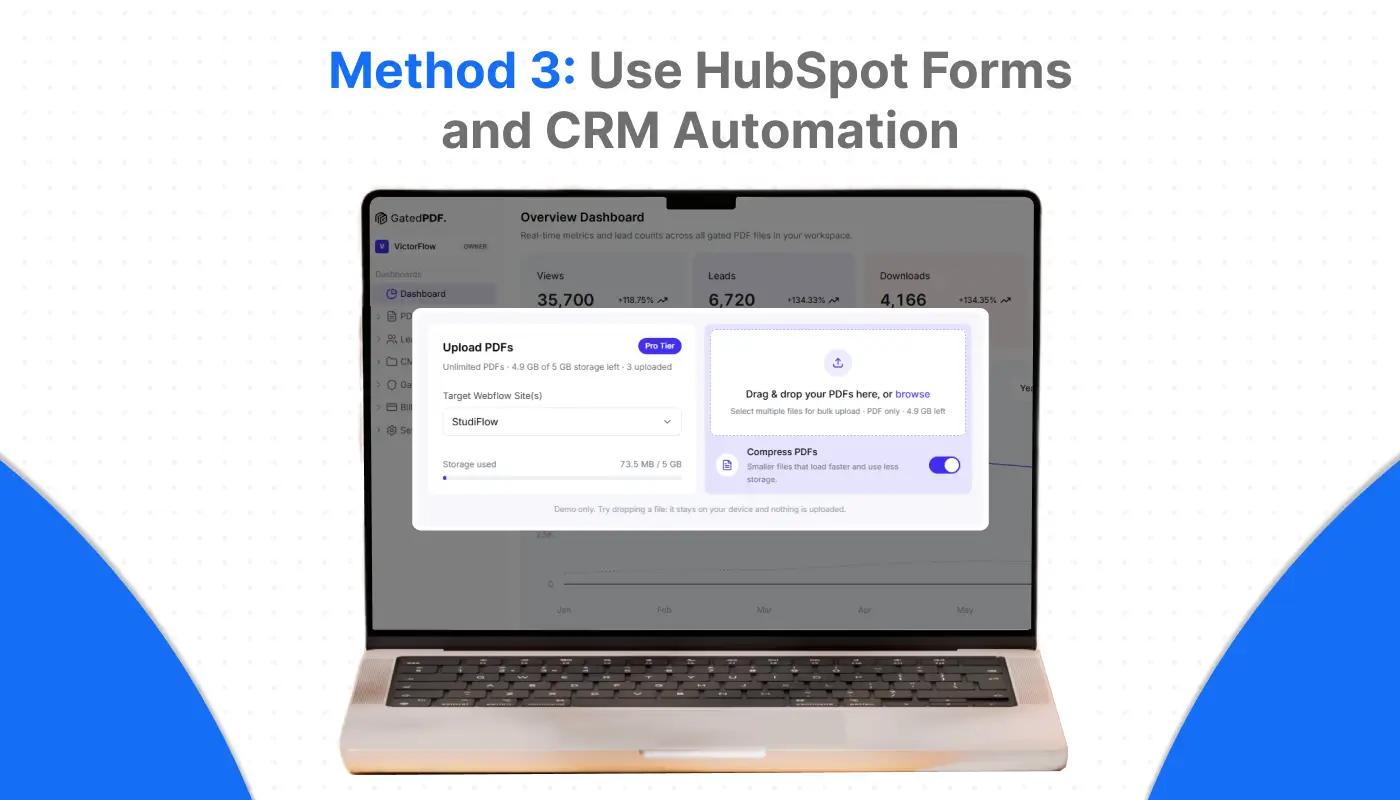
If your marketing team uses HubSpot, you can consider its forms and CRM workflows for capturing leads and organizing follow-up.
Implementation steps:
- Create a form in HubSpot.
- Add the fields required for your lead-generation campaign.
- Embed the form on your Webflow landing page or configure a supported submission integration.
- Create a contact property or other tracking mechanism to identify the requested PDF.
- Configure the appropriate confirmation and follow-up workflow.
- Test form submissions and contact records before publishing.
This approach can be useful for teams that need lead segmentation, contact management, and sales follow-up.
However, integration options and automation features depend on your setup and subscription. HubSpot integration alone does not protect a publicly accessible PDF; file access must be handled separately.
Method 4: Use Membership or Access-Control Tools
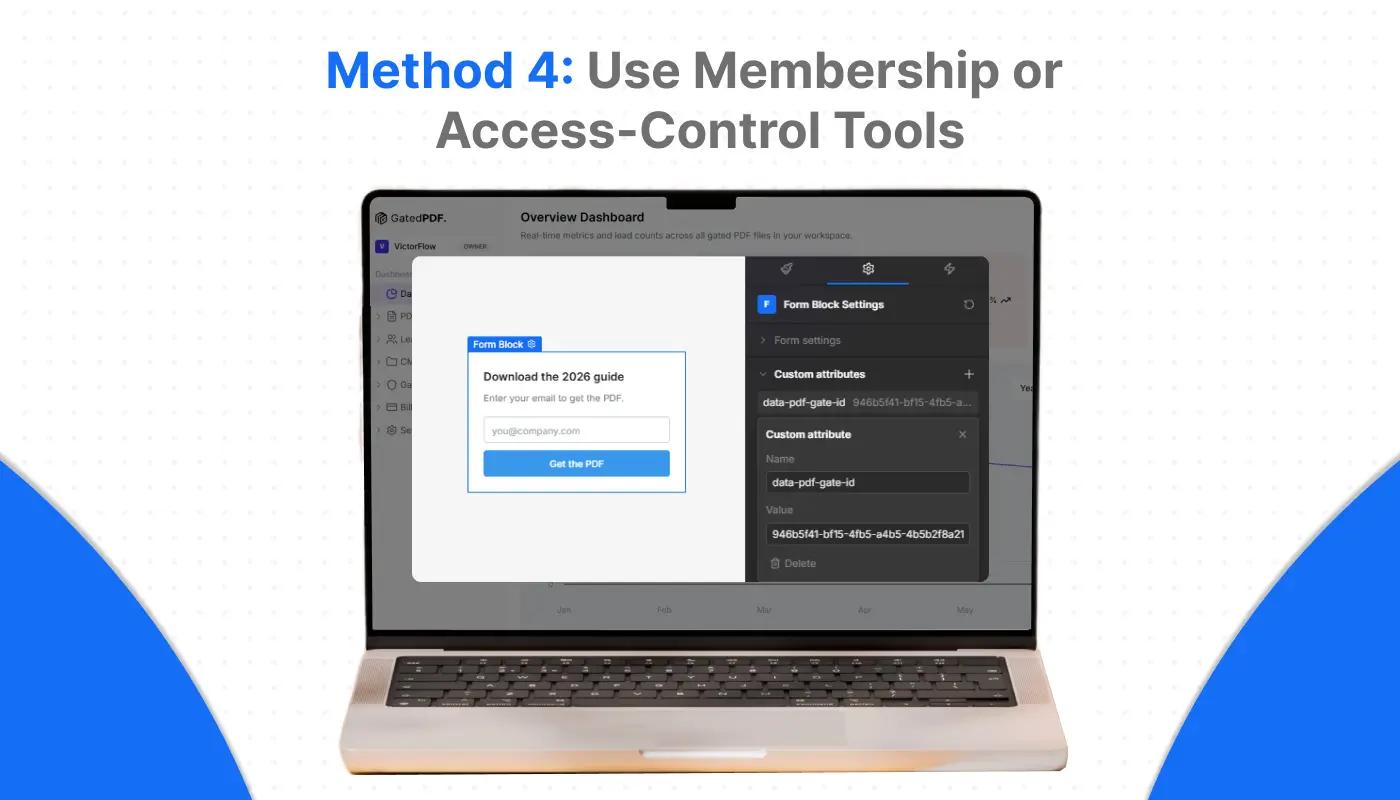
Membership tools may be appropriate when PDFs belong to a paid resource library, online course, customer portal, or members-only area.
A typical workflow involves:
- Creating a membership or access rule.
- Defining which users can access the resource.
- Restricting the relevant page or file-delivery endpoint.
- Testing access for authorized members.
- Checking whether anonymous visitors can bypass the restriction through a direct URL.
Tools such as Memberstack or Outseta may fit certain Webflow membership workflows, depending on the required configuration.
The important consideration is that protecting a page does not automatically protect the PDF linked from that page. The underlying file-delivery system must enforce the intended permissions.
Choose this approach when access depends on membership or authorization rather than email capture alone.
Method 5: Use GatedPDF for a Dedicated PDF-Gating Workflow
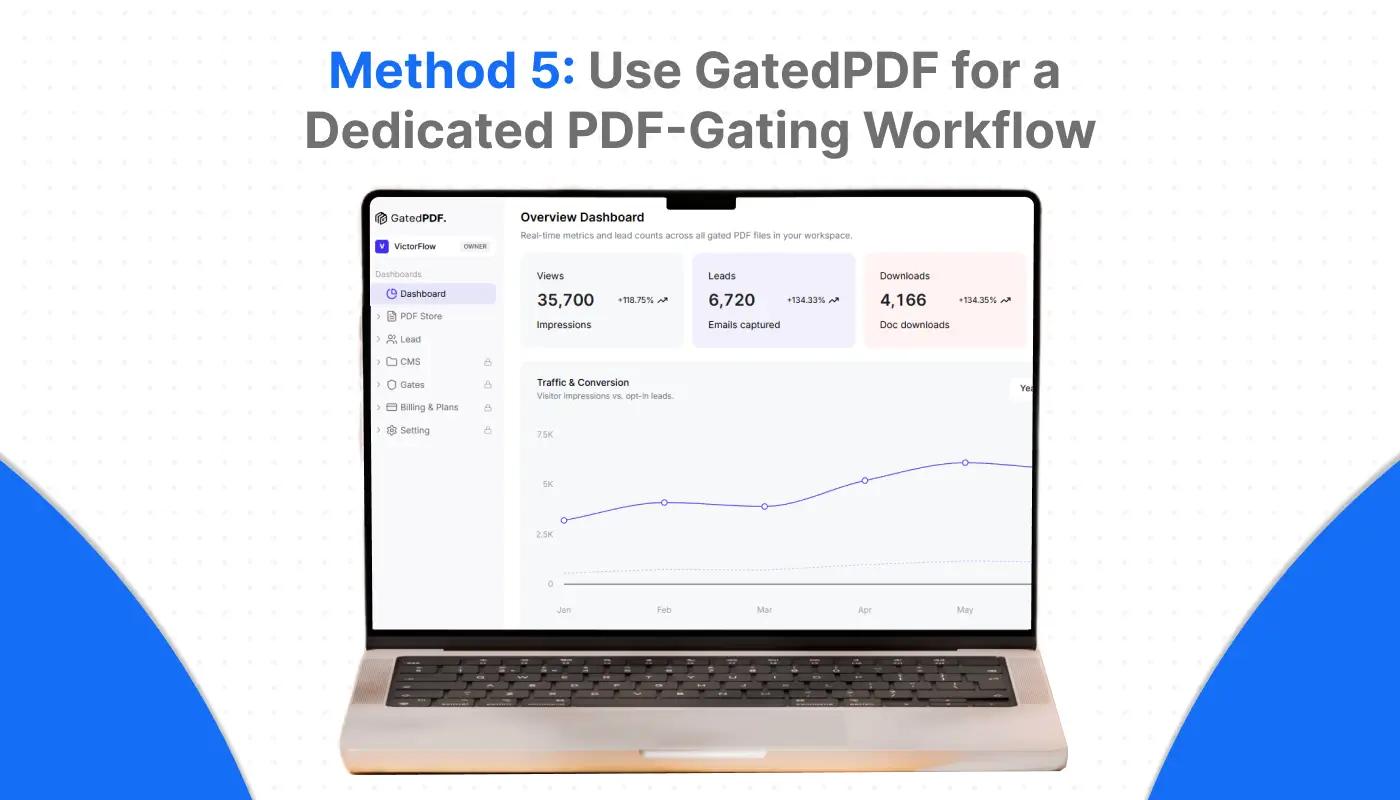
GatedPDF is a purpose-built option for businesses that want to gate PDF resources on Webflow and capture email leads.
The product website and documentation describe a PDF-gating workflow that includes PDF uploads, gate configuration, email capture and delivery, Webflow integration, CMS-related functionality, and lead-management capabilities. Verify current availability and plan requirements before implementation.
How to set it up:
- Visit GatedPDF and create an account.
- Connect your Webflow site using the supported integration.
- Upload the PDF you want to gate.
- Configure the gate and its required settings.
- Connect the PDF to the appropriate Webflow page, CMS item, or supported form workflow.
- Configure the visitor's access and delivery experience.
- Publish the changes and test the workflow on your live website.
- Review the available lead records and analytics.
For detailed configuration instructions, follow the GatedPDF documentation.
Advantages:
- Designed specifically for PDF gating.
- Can simplify a workflow that would otherwise involve several separate tools.
- Supports a more focused PDF lead-generation process.
- Provides documented lead and analytics capabilities.
Important: Confirm the current integration requirements, available features, and plan restrictions in the official documentation. Test the complete workflow before relying on it for a live campaign.
4. Comparing the 5 PDF-Gating Methods
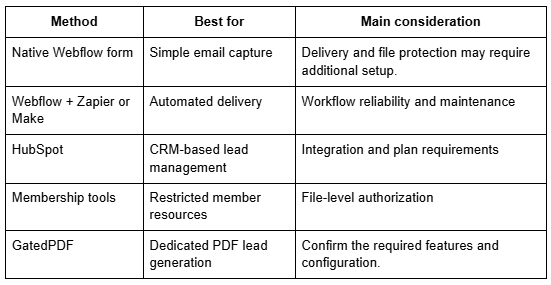
Which option should you choose?
Choose Webflow's native form for a basic lead-generation campaign. Consider automation or HubSpot if your workflow depends on CRM records and follow-up. Choose membership tools when access depends on user permissions. Consider GatedPDF when you want a dedicated workflow for gating PDFs and capturing leads.
The right choice depends on the required functionality, budget, technical complexity, and level of access control.
5. How to Prevent Direct-Link Access to Gated PDFs
One of the most common mistakes in PDF gating is assuming that hiding a download link makes the document private.
Webflow assets and uploaded files may be publicly accessible through their URLs, depending on where and how they are hosted. A visitor who discovers the original file URL may be able to open it without completing your form.
Consider this example:
- A visitor submits an email address.
- Your website redirects them to a PDF.
- The visitor copies the PDF's URL.
- They share the URL with someone else.
- The other person opens the document without submitting their email.
In this scenario, your form captures a lead, but the PDF itself is not restricted.
How to audit your existing PDFs
Before launching your campaign:
- Identify PDFs that should require form submission.
- Open each original file URL in a private browser window.
- Check whether the document is accessible without completing the gate.
- Search your public pages and CMS items for links to the original file.
- Test whether old links remain accessible after changing your setup.
- Confirm that your chosen delivery system enforces the required access rules.
If you need actual access control, use a suitable protected file-delivery system rather than relying only on a form, thank-you page, or hidden button.
Also remember that nofollow does not prevent direct access to a PDF. It is not a security feature.
6. Best Practices for Capturing More Email Leads
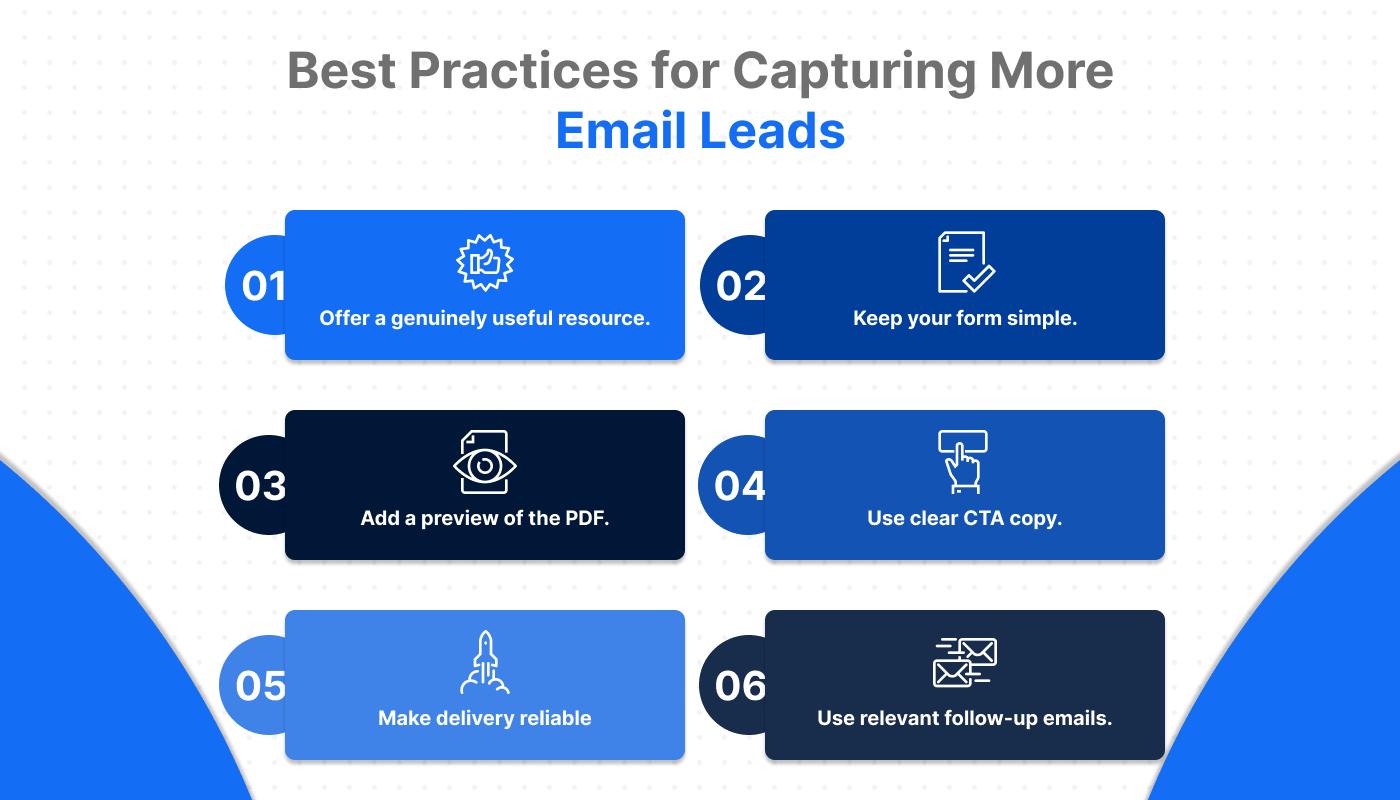
A well-designed gate should make the value of the resource clear while minimizing unnecessary friction.
1. Offer a genuinely useful resource.
Visitors are more likely to consider exchanging their email address when the document solves a specific problem.
Examples include:
- A SaaS marketing strategy checklist.
- A website launch guide.
- A B2B lead-generation playbook.
- An industry research report.
- A product evaluation template.
Explain what the reader will learn or accomplish after downloading the resource.
2. Keep your form simple.
Start with an email field unless additional information is genuinely necessary.
If you need a visitor's job role or company size to qualify leads, test whether collecting that information improves lead quality enough to justify the extra form friction.
Avoid requesting unnecessary personal information.
3. Add a preview of the PDF.
Help visitors understand what they will receive by including a short description, table of contents, sample page, or list of key takeaways.
A useful preview sets expectations and helps visitors decide whether the resource is relevant to them.
4. Use clear CTA copy.
Avoid vague button labels such as "Submit."
Use descriptive wording that communicates the next action, such as:
- Get the Free Guide
- Download the Checklist
- Access the PDF
- Send Me the Report
The CTA should accurately reflect what happens after the visitor clicks.
5. Make delivery reliable
Test the complete process before publishing.
Check that the confirmation message appears, the email arrives, the PDF link works, and the visitor receives the resource promised on the landing page.
If delivery depends on an automation platform, test failure scenarios and configure appropriate monitoring.
6. Use relevant follow-up emails.
Connect the follow-up to the resource requested.
For example, someone downloading a Webflow checklist may benefit from a related tutorial, while someone requesting a product comparison may be interested in a feature guide.
Respect applicable privacy requirements and distinguish delivery of the requested resource from optional marketing subscriptions.
7. How to Measure PDF Lead-Generation Performance
Capturing email addresses is only one measure of success. You also need to know whether visitors receive the PDF and whether the resulting leads are relevant to your business.
Track the following metrics where your analytics setup supports them:
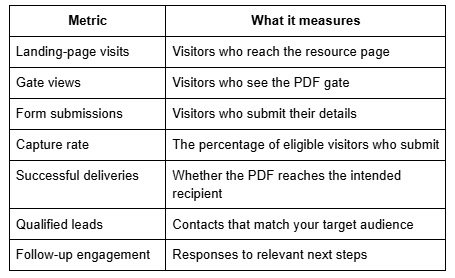
Capture rate = (Valid submissions ÷ Eligible gate views) × 100
For example, 75 valid submissions from 500 eligible gate views produce a capture rate of 15%. This is an illustrative example, not an industry benchmark.
If you offer several PDFs, track each resource separately. This helps you identify which topics attract visitors, which resources convert, and which campaigns generate the most relevant leads.
You can also configure analytics events for gate views, form submissions, and successful deliveries. Use your chosen analytics platform to implement and test these events, and avoid sending email addresses or other personally identifiable information to analytics systems.
8. Common PDF-Gating Mistakes to Avoid
Using a public PDF URL as if it were protected: A form does not restrict access to the original file. Test the actual URL.
Requesting too much information: Long forms can create unnecessary friction. Collect only what you need.
Ignoring mobile users: Check that the form, CTA, and PDF-access experience work on smaller screens.
Failing to test email delivery: A successful form submission does not guarantee that the visitor received the document.
Gating every resource: Keep useful educational content accessible when doing so supports discovery and user experience.
Sending irrelevant follow-up emails: Use the requested resource to guide relevant communication, and respect marketing consent.
Measuring submissions alone: Evaluate successful delivery and lead quality, not just the number of email addresses collected.
Frequently Asked Questions
1. How do I gate a PDF on Webflow?
Create a landing page, add an email capture form, configure how submissions are handled, and deliver the PDF after submission. If you need to prevent direct-link access, use a delivery system that enforces access restrictions.
2. Can I gate a PDF on Webflow without coding?
Yes. You can use Webflow's native forms for basic lead capture or a dedicated tool such as GatedPDF for a PDF-focused workflow. The configuration depends on your delivery and access-control requirements.
3. Can Webflow automatically email a PDF after form submission?
Yes, when you configure a supported email or automation workflow. Test the trigger, delivery email, and PDF link before publishing. Email delivery does not automatically make a public PDF private.
4. Is PDF gating good for SEO?
PDF gating is primarily a lead-generation technique rather than a direct search-ranking strategy. Keep valuable educational pages accessible to support organic discovery and offer relevant gated resources as an additional conversion opportunity.
5. How do I protect a PDF on Webflow?
Use a file-delivery mechanism that enforces the intended access rules. Do not rely on a hidden button, thank-you page, or nofollow attribute to prevent access to a public file URL.
6. Can I gate multiple PDFs on different Webflow CMS pages?
Yes, with a suitable integration or workflow that associates each resource with the correct CMS item. Check the current GatedPDF documentation for supported CMS functionality and plan requirements.
7. Should I gate every PDF on my website?
No. Gate resources when the value exchange makes sense. Public resources can support organic discovery and customer education, while more specialized guides and reports may be appropriate for lead capture.
Conclusion
Gating a PDF on Webflow involves more than placing an email form above a download button. You need a valuable resource, a straightforward submission process, reliable delivery, appropriate access control, and a way to measure performance.
Webflow forms provide a starting point for basic campaigns. Automation tools and CRM integrations support more advanced marketing workflows, while membership tools can help manage restricted resources. For a dedicated PDF-gating process, GatedPDF is another option to consider.
The best method depends on your business objectives, technical requirements, and the experience you want to provide visitors.
Ready to turn your PDFs into a lead-generation channel? Explore GatedPDF and follow the Webflow setup documentation to get started.